Installing a Client Agent
The agent runs on every machine you back up. It wraps the proxmox-backup-client CLI,
keeps the jobs assigned to it in its own data directory, and runs them on schedule even
while the PBCM server is unreachable. This page describes the only supported way to run
it — Docker Compose.
Install the server first: the agent needs a server to register with.
Prerequisites
- Docker with the Compose plugin on the machine to be backed up.
- A running PBCM server you can reach from this machine, and a registration token from its dashboard (inbound mode) — or the server able to reach this machine (outbound mode, see below).
- Nothing from Proxmox.
proxmox-backup-clientis inside the image, so the host needs no Proxmox packages at all. Where it comes from differs by architecture — see Pick the right image.
Pick the right image
The agent's two architectures ship as two image names, not one manifest — unlike the
server image, docker pull will not pick for you:
| Host architecture | Image |
|---|---|
| x86-64 | ghcr.io/stefgo/pbcm-client:latest |
| ARM64 (Raspberry Pi, Apple Silicon, ARM servers) | ghcr.io/stefgo/pbcm-client-arm64:latest |
uname -m answers the question: x86_64 or aarch64. Both names also carry :main
(the current state of the main branch, without a release), :dev (the state of
development) and a version tag such as :1.4.0 to pin a release. latest is the last
released version and the one to use unless you have a reason not to.
Where proxmox-backup-client comes from
The two images do not get the CLI from the same place, and on ARM64 that is worth knowing before you deploy:
| Base | Source of the CLI | |
|---|---|---|
pbcm-client (amd64) |
node:22-bookworm-slim |
The official Proxmox repository download.proxmox.com/debian/pbs-client, installed with apt. |
pbcm-client-arm64 |
node:22-trixie-slim |
The community .deb from wofferl/proxmox-backup-arm64, pinned to release 4.1.4-1. |
Proxmox publishes no ARM64 build of proxmox-backup-client. The
wofferl/proxmox-backup-arm64 project
builds the upstream sources for arm64 and publishes them as .deb packages; the ARM64
image installs one of those. It is what makes an agent on a Raspberry Pi possible at all.
The ARM64 CLI is a third-party build
It is neither built nor supported by Proxmox Server Solutions GmbH, and it is not
covered by whatever support arrangement you have for your PBS. Bugs in the CLI itself
belong in that project's issue tracker,
not in PBCM's. The version is pinned in
docker/Dockerfile.client
and therefore moves only when this project bumps it — it can lag the amd64 image,
which tracks the Proxmox repository.
Agent and server are updated together
They speak one protocol version. An agent older than the server is refused at
/ws/agent with close code 4001. Keep the two on the same release.
1. Create the configuration file
As with the server, the file has to exist before the container starts — a bind mount at a missing path makes Docker create a directory there.
mkdir -p pbcm-client && cd pbcm-client
curl -fsSLo client-config.yaml \
    https://raw.githubusercontent.com/stefgo/proxmox-backup-client-manager/main/client/config.example.yaml
The file holds only what you set. The agent's identity -- its clientId and authToken,
both issued by the server during registration -- is not written into it but into
identity.json in the agent's data volume. Every key is documented in
Configuration.
2. Write the Compose file
services:
    pbcm-client:
        container_name: pbcm-client
        # ARM64 hosts: ghcr.io/stefgo/pbcm-client-arm64:latest
        image: ghcr.io/stefgo/pbcm-client:latest
        ports:
            - "3001:3001"
        # What root in this container may do: a backup and a restore, nothing else.
        # See "What the agent container may do" below.
        cap_drop:
            - ALL
        cap_add:
            - DAC_READ_SEARCH # backup: read files of every owner
            - DAC_OVERRIDE    # restore, as are the five below
            - CHOWN
            - FOWNER
            - FSETID
            - MKNOD
            - SETFCAP
        security_opt:
            - no-new-privileges:true
        read_only: true
        tmpfs:
            - /tmp
        volumes:
            # Configuration, created in step 1. The agent writes back to it only the
            # serverUrl of a web UI registration.
            - ./client-config.yaml:/app/client/config.yaml
            # Data directory: the identity issued at registration, the agent's jobs, their
            # schedule state and its run history. The jobs exist nowhere else, and without
            # the identity the agent has to be registered again -- back this volume up.
            - client-data:/app/client/data
            # The data to back up. Read-only is enough for backups; see the note below.
            - /:/mnt/host:ro
        environment:
            - NODE_ENV=production
            # The clock job schedules repeat on (see "Time zones" below). Without it: UTC.
            # - TZ=Europe/Berlin
        restart: unless-stopped

volumes:
    client-data:
What the agent can back up is what you mount
This is the one thing containerising an agent changes. The CLI runs inside the
container, so a job's source paths are paths in the container's filesystem. Mounting the
host root at /mnt/host means the job for /etc is configured as /mnt/host/etc.
Two consequences worth deciding on deliberately:
- Mount narrowly if you can.
- /srv/data:/mnt/data:rois a better answer than the whole root filesystem when you know what you are backing up. The root mount is the convenient default, not the safe one. :rois enough for backups, not for restores. A restore writes, and it writes to the same path it reads from. If this agent should be able to restore in place, drop the:roon the paths that need it — and understand that you have given the container write access to them.
Unlike the server, the agent runs as root in its container, on purpose: a backup has to read files whatever their owner, and a restore sets owners and modes back. The mounts above are what limits it, together with the capabilities below, not the user it runs as.
What the agent container may do
The Compose file above drops every Linux capability and adds back the seven a backup and a
restore need, forbids new privileges, and makes the root file system read-only with /tmp
in memory. What each setting is for, what breaks without it, and what it means for a job's
hook scripts is in Security. An agent that
only ever backs up needs DAC_READ_SEARCH alone.
3. Register the agent
Registration is what turns a running container into a client the dashboard knows. Which path you take was decided when the client was created in the dashboard, and cannot be changed afterwards.
The normal case. The agent opens the WebSocket to the server, so the server needs no route back — this is the mode for agents behind NAT or a firewall.
- In the dashboard, + Add Client → Inbound. Give it a display name; optionally restrict it to one IP or network. Add Client & Generate Token adds the client — it waits for its agent — and shows a registration token, once, valid for 30 minutes. If it runs out, the client's page generates a new one.
-
Start the container and read the setup PIN from its log:
-
Open
http://<this-host>:3001/registerand enter the server URL, the registration token and the PIN.
The PIN exists because the caller of that endpoint supplies both the server URL and the token — without it, anyone able to reach port 3001 could point your unregistered agent at a server of their own. It is held in memory only, regenerated on every start, rotated after five failed attempts, and stops existing once the agent has an identity.
For agents that cannot reach the server, or that need the
SSH reverse tunnel to reach the PBS. The server opens the connection, so
this machine must be reachable from the server on listenPort.
-
Leave
serverUrlunset inclient-config.yaml— the agent infers outbound mode from exactly that. Restricting who may dial it is recommended: -
Start the container and read the setup PIN from its log:
docker compose logs pbcm-client. - In the dashboard, + Add Client → Outbound, with this machine's address and port and the PIN. Create dials the agent and registers it.
The PIN guards the handshake together with allowedNetworks; it is rotated after five
failed attempts and stops existing once the agent is registered. For an unattended
rollout, give the agent PBCM_REGISTRATION_SECRET (or PBCM_REGISTRATION_SECRET_FILE,
e.g. a Docker secret) and enter that value instead of the PIN; remove it again once the
agent is registered.
Outbound plus tunnel needs network_mode: host
The SSH reverse forward terminates in the network namespace of the host's
sshd. A container on a bridge network has its own 127.0.0.1 and cannot reach it —
runs fail with SSH tunnel not reachable … ECONNREFUSED. Replace the ports:
block with network_mode: host; the ports: mapping is then ignored, so if 3001
is taken on the host, set a free one via PBCM_CLIENT_PORT and enter that same
port in the client's target address on the server.
Either way the agent stores the clientId and authToken it was issued in
identity.json in its data volume, and the client turns online in the dashboard.
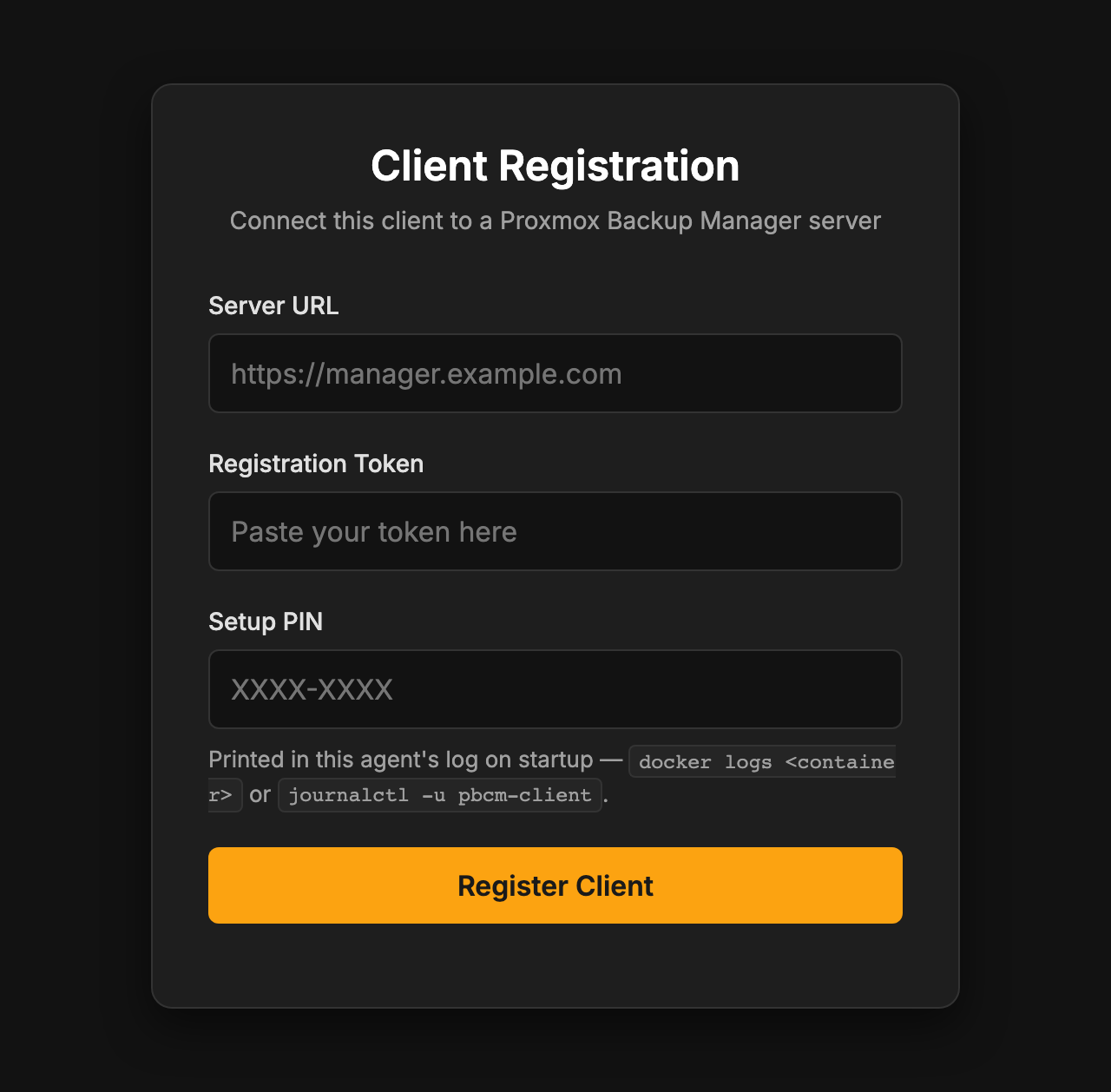
The agent's own registration form on port 3001, used by the inbound path. It stops being served once the agent holds an identity.
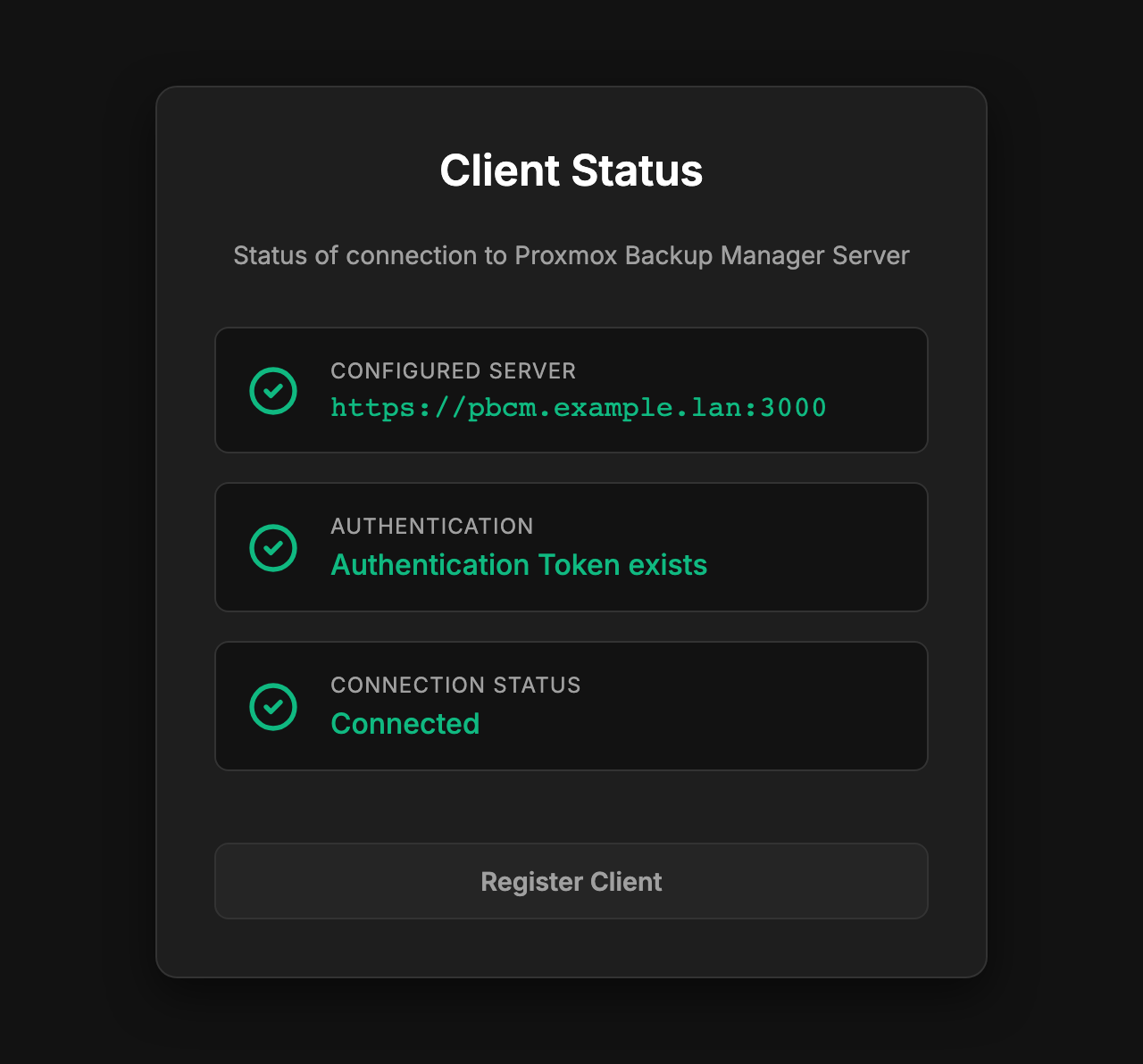
The same port afterwards. /status checks the three things in order and skips the rest after the first failure, so the first red line is the one to fix.
4. Give it a job
Jobs are defined server-side, in the dashboard, and pushed to the agent over the
WebSocket. Remember that the source paths are container paths — /mnt/host/etc, not
/etc, for the mount in step 2.
The schedule then belongs to the agent: its own scheduler fires it, from its own data files. A PBCM server that is down, restarting or unreachable stops no backup.
Time zones
The start of a schedule is entered in the browser and means that moment in the browser's time. Every run after it is planned by the agent on its own clock: a daily or weekly job keeps the time of day of its start in the agent's time zone, across daylight saving changes, and the weekdays are checked in that zone as well. Hours, minutes and seconds are fixed intervals.
The agent's zone is the TZ of its process. The published image sets none, so it is UTC
until you add TZ to the Compose file above. A job started at 02:00 in Berlin then repeats at
00:00 UTC, which is 01:00 in Berlin in winter. The client page shows the zone each agent
reported, and the job editor shows it next to the schedule.
Operating it
- Operations — health, logs, updating in the same window as the server, and re-registering a host.
- Security — what the agent container may do, address checks and TLS.
- Upgrade Notes — what an older installation has to do after an update.
Next steps
- Configuration reference — every key in the agent's
config.yaml. - SSH reverse tunnel — for a client with no route to the PBS.
- Client Agent architecture — lifecycle, scheduler, executor.