Activity
The activity list is DIM's record of what happened on each host: containers that stopped,
died, restarted or turned unhealthy, images that were pulled, actions you started and
auto-update runs. It is taken from each host's Docker event stream, so it also shows what
happened outside DIM — a docker compose up on the host, or a container that crashed at
night.
When an agent loses its connection to Docker, it asks for what it missed once it is listening again, and those entries appear at the time they happened. Docker keeps only its latest events and none from before its own restart, so after a long break or a restart of the Docker daemon some entries are missing. The state shown for the host is correct again either way.
Groups
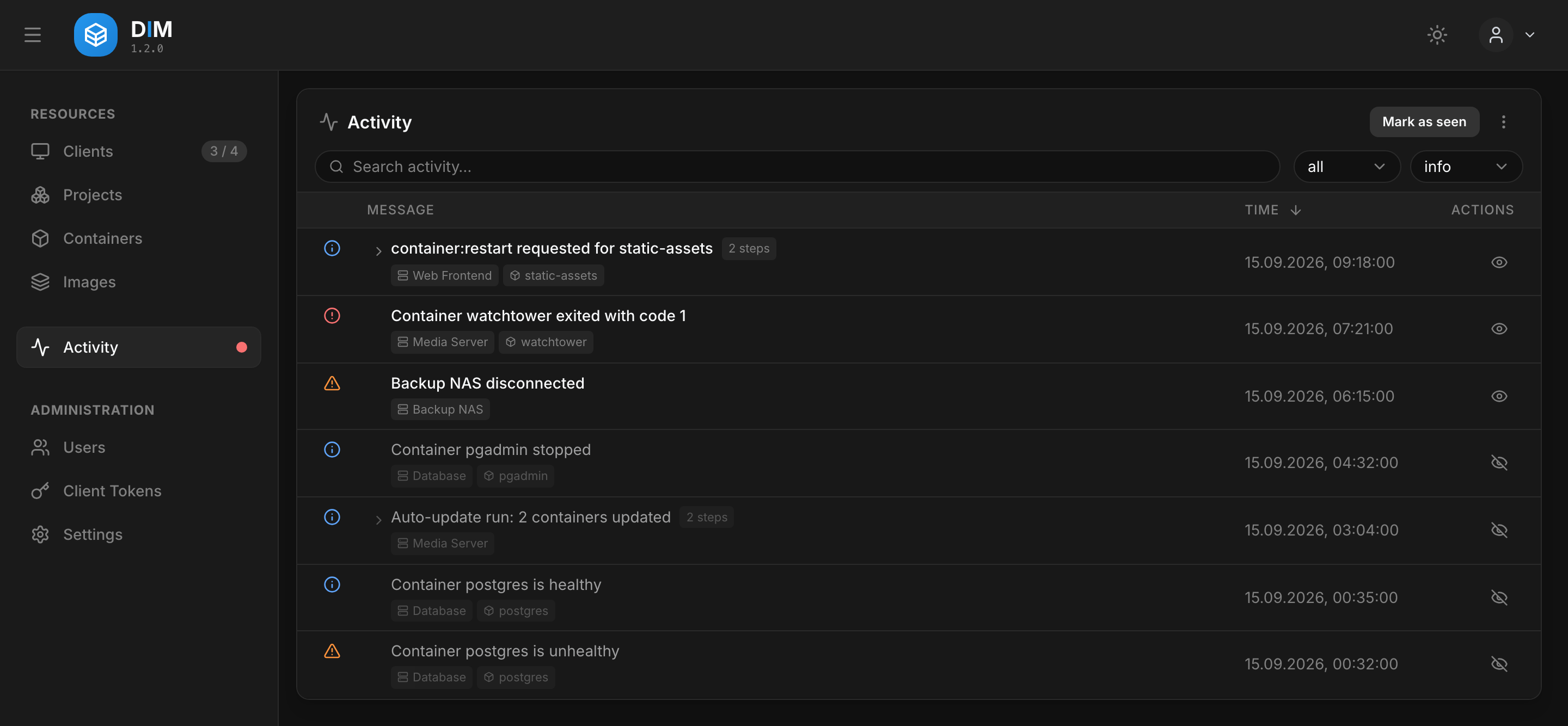
Everything one action or one auto-update run caused is shown as one row, with its steps folded underneath: container:restart requested → stopped → started → healthy. The grouping comes from an id the action carries through the agent, not from matching names or times, so two actions on the same container never mix. When the agent updates itself, the outcome joins the same row once the agent is back -- Agent updated itself to …, or the rollback, which then marks the row as an error.
What a container goes through on its host without DIM having asked -- a docker compose up,
a restart -- is grouped by time instead: the steps of one container that follow each other
within a few seconds become one row, such as Container web recreated. A container caught
in a restart loop is one row per run, and the same row in a row is shown once with a count
(Container web exited with code 1, 9×); expanded, it says when else and how often it
happened.
Levels and filters
Every entry has a level: error, warning, info or trace (routine bookkeeping such as an agent connecting). The level filter is a minimum — warning shows warnings and errors.
The page opens on what needs a look: unseen entries, starting at the highest level any of them has. Switch the filters to all and info to see everything. Unseen errors and warnings raise the red dot next to Activity in the sidebar.
Mark as seen marks everything the filters and the search leave on screen; the eye icon in a row marks that group. Seen state is per user.
Event levels
Settings → Activity History → Event Levels sets the level per kind of event. Each kind has a select: Default keeps the built-in level, shown in brackets, and any of the four levels replaces it.
- An override is fixed for the whole kind.
container.diedis info for exit code 0 and warning otherwise; set to error, every exit is an error. - An exit somebody asked for -- a
docker stop,docker rm -forcompose downon the host, or a stop, restart or update from DIM -- is info, whatever its exit code: Docker reports the signal in front of it ascontainer.killed(received SIGTERM, level trace), and a container that ends by itself has none. The list and the webhooks see the same level. Switchingcontainer.killedoff makes this unreliable. - none switches a kind off: its events are not stored, do not appear anywhere and reach no webhook. They cannot be brought back later.
- A change applies to events from then on. What is already in the list keeps its level.
- Four kinds cannot be set to none, because a group in the list depends on them:
action.requested,action.completed,action.failedandautoupdate.run. - Switching off single steps changes how a group reads: without
container.removed, a recreated container is listed as created and started.
A webhook compares its minimum level with the overridden one, so raising a kind to error is also how to have it sent.
Where else it appears
Every detail page — a host, a container, an image, a project — shows the part of the activity that concerns it, with the same filters.
Outside the dashboard, webhooks send the events you choose to a chat, a push service or an endpoint of your own.
Offline hosts
An agent that cannot reach the server keeps its events and hands them over when it reconnects — up to 500 events, for up to seven days. They appear at the time they happened, not the time they arrived.
Retention
Settings → Activity History: entries older than 90 days are removed, but the newest 500 are always kept. Delete all in the page menu clears the list; single entries cannot be deleted.