Clients
A client is one Docker host, managed through the DIM agent running on it. This page covers connecting hosts, editing and removing them. The Quick Start walks through the first one.
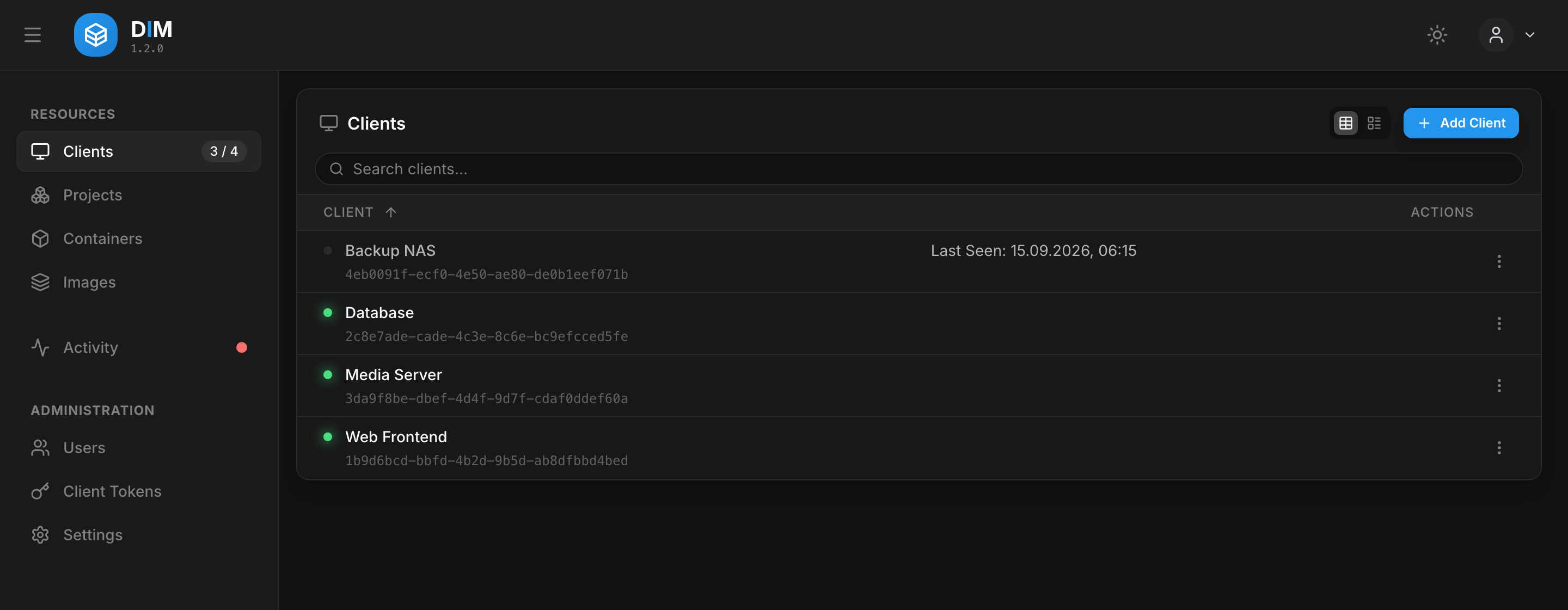
The dot in front of a client is its live connection, not a stored status; the sidebar badge counts online clients against all of them. A click on a client opens its containers, images, volumes and networks, each list with its own actions and the host's activity below.
The overview
DIM opens on the Overview: how many clients are online, how many containers have an update waiting, how many are not running on the hosts that are connected and how many errors and warnings you have not marked as seen. Each card leads to the list behind its number, and the numbers follow the hosts without a reload. The badges in the sidebar show the same counts.
Which side connects
Server and agent talk over one persistent WebSocket. Either side may open it — you choose when adding the client, and the modes are named from the server's point of view:
| Mode | Who dials | Use it when | Agent needs |
|---|---|---|---|
| Inbound | the agent dials the server | the host can reach the server — the usual case | serverUrl (set at registration) |
| Outbound | the server dials the agent | only the server can reach the host, e.g. a host behind NAT that the server reaches over a VPN | a reachable port (3001), no serverUrl |
Once connected there is no difference: the same messages flow, the same actions are possible.
Inbound: the agent connects to the server
- Clients → Add Client → The agent connects to this server → Next.
- Give the display name the client is listed under and, optionally, the allowed IP or network it should start with. Without one, the address the agent registers from becomes its only allowed address.
- Add Client & Generate Token. The client is listed from now on, as Awaiting registration. Its registration token is shown once and is valid for 30 minutes and for one registration.
- On the agent, open
http://<host>:3001/registerand enter the server URL, the token and the setup PIN fromdocker logs dim-client.
The agent registers under the client created in step 3: it receives its id and a permanent
auth token, stores both in identity.json in its data volume and connects. The register page
closes itself, and the client shows the hostname the agent reported.
If the token ran out or was lost, open the waiting client and use Generate New Token — the new one replaces the old.
Outbound: the server connects to the agent
- Start the agent with an empty
serverUrl, so it waits to be called. - Clients → Add Client → This server connects to the agent → Next.
- Enter a display name, the target address (
host:port, orwss://host:portwhen the agent serves TLS) and the agent's setup PIN. - Add Client. The server dials the agent at once; if the agent refuses, the wizard shows why.
The auth token travels in the connection URL, so an outbound agent outside a network you control should serve TLS — see TLS.
Rolling out without reading logs
For agents deployed by automation, where nobody reads the PIN from the log, give the agent a secret instead and enter that in the wizard:
services:
    dim-client:
        environment:
            - DIM_REGISTRATION_SECRET_FILE=/run/secrets/dim_registration
        secrets:
            - dim_registration

secrets:
    dim_registration:
        file: ./dim-registration.secret
DIM_REGISTRATION_SECRET works too. Remove the secret once the agent is registered; the
agent logs a reminder.
The setup PIN
Registering an agent decides who controls its host's Docker socket, so both ways of registering require a PIN from the agent's own log:
- It is printed on every start of an unregistered agent (
docker logs dim-client) and never written to disk. Case and the hyphen do not matter. - After five wrong attempts it is replaced by a new one, also logged.
- It is dropped with the first successful registration.
The agent's own pages
The agent serves two small pages on port 3001: /register until it is registered, and
/status, which shows the connection mode, the server and whether the connection is up.
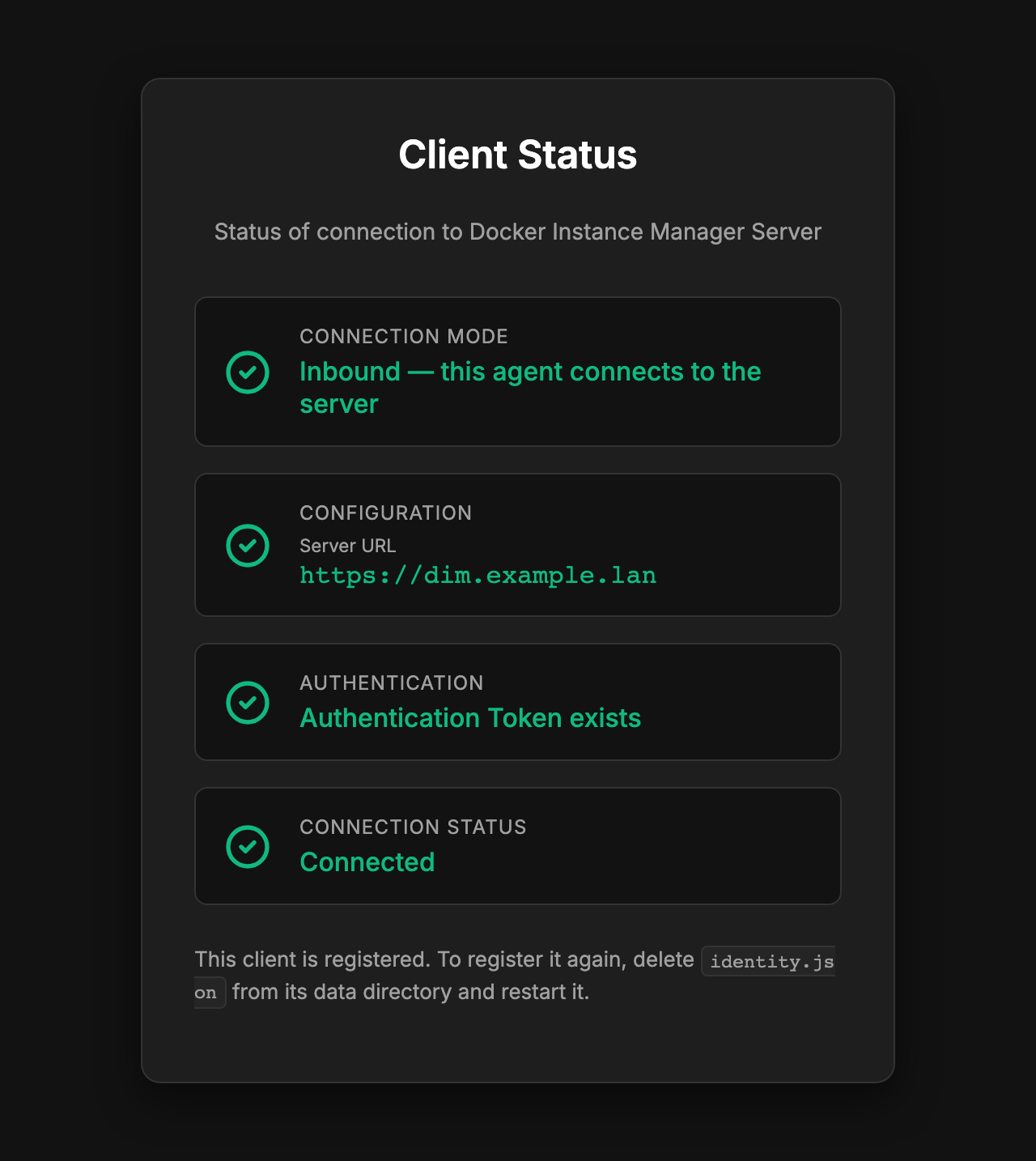
enableStatusPage: false and enableRegisterPage: false in the agent's config.yaml switch
them off; see Configuration.
Editing a client
Edit in a client's menu opens the client editor:
- Display name.
- Allowed IP or network (inbound) — where this client's connections have to come from.
Widen it to a network (
192.168.1.0/24) or switch the check off for a host whose address changes, such as one on DHCP. The editor warns when the new value would lock out the address the agent last connected from. - Target address (outbound) — where the server dials. Saving reconnects at once, so a host that moved does not have to be registered again.
- Auto-update schedule — give this host a schedule of its own instead of the default; see Updates.
Removing and re-registering
Delete removes the client from DIM: its record and the cached Docker state. Nothing on the host is touched; the agent keeps running, and its connection is refused from then on.
To register an agent again — after reinstalling it, or to move it to another server — delete
identity.json from its data volume and restart it:
It prints a new setup PIN and opens its register page again.
To keep an inbound client — its id, settings, projects and activity — use Re-register Agent in the client's menu and register the agent with that token. The agent connected so far keeps working until the new one registers, and is refused from then on. The allowed IP or network stays as the client has it.
An outbound client is registered again by adding it once more in the wizard; that creates a new client entry, and the old one can be deleted.
Updating the agent
The agent runs in a container like any other and is updated the same way: Pull & Recreate
on the dim-client container, or auto-update via the label. The agent recognises its own
container and hands the recreate to a short-lived helper, so the update does not cut the
branch it sits on.