Updates & Auto-Update
DIM answers two questions for every container: is its image behind the registry? and — if you want it to — update it, on a schedule, without me.
Checking for updates
A check compares the digest of the local image with the one the registry currently serves for
the same tag and platform. It works for public images on Docker Hub, ghcr.io and
lscr.io; the check sends no credentials, so a private repository, or a registry that insists
on a login, shows up as could not be checked.
- By hand: every list has a Check button in its header and in each row. The header's button checks what the list shows: everything while nothing narrows the list, only the hits while a search or a filter does. It asks first and says how many containers, images, projects or clients it is about to check, and whether that is the whole list or only what the search leaves; a row's button checks at once. Containers, images, projects and a single host all work the same way.
- For a selection: the container and image lists have a checkbox in front of every row. Once you pick rows, the header's buttons act on them alone, and every one of them asks first and says how many containers or images it is about to reach. Pull & recreate, and for containers start and stop, act on the picked rows only and stay disabled until something is picked. The number picked is shown behind the list's title; clear the checkboxes to act on the whole list again.
- On a schedule: Settings → Image Update Check sets an interval;
3600checks every image of every host once an hour. Off by default. A registry that answers with a rate limit is paused for as long as it asks, the others carry on.
The Up-to-date column then shows ✓ (up to date), ↑ (update available) or ? (never checked, or the registry could not answer); a dash stands for an image there is nothing to check for. Pointing at the icon says which it is. For an image with an update, its page also shows what the registry says about the new image — version, build date, source.
The container list can be narrowed to what needs a look: the two filters next to its search show only the containers that have an update, are up to date or were never checked, and only those that run, do not run or sit on a host that is offline. The Updates available and Containers not running cards of the overview open the list with that filter already set, and the address keeps it, so the filtered list can be bookmarked.
Pull & Recreate
Pull & Recreate pulls the newer image and recreates the containers that run it, with their configuration unchanged. It is scoped to where you click it:
| Clicked on | Recreates |
|---|---|
| a container | that container |
| an image (one host, or across hosts) | every container on that image |
| a project | the project's containers only — other containers on the same image are left alone. A dialog asks whether to recreate only those with an update, or all of them (force). |
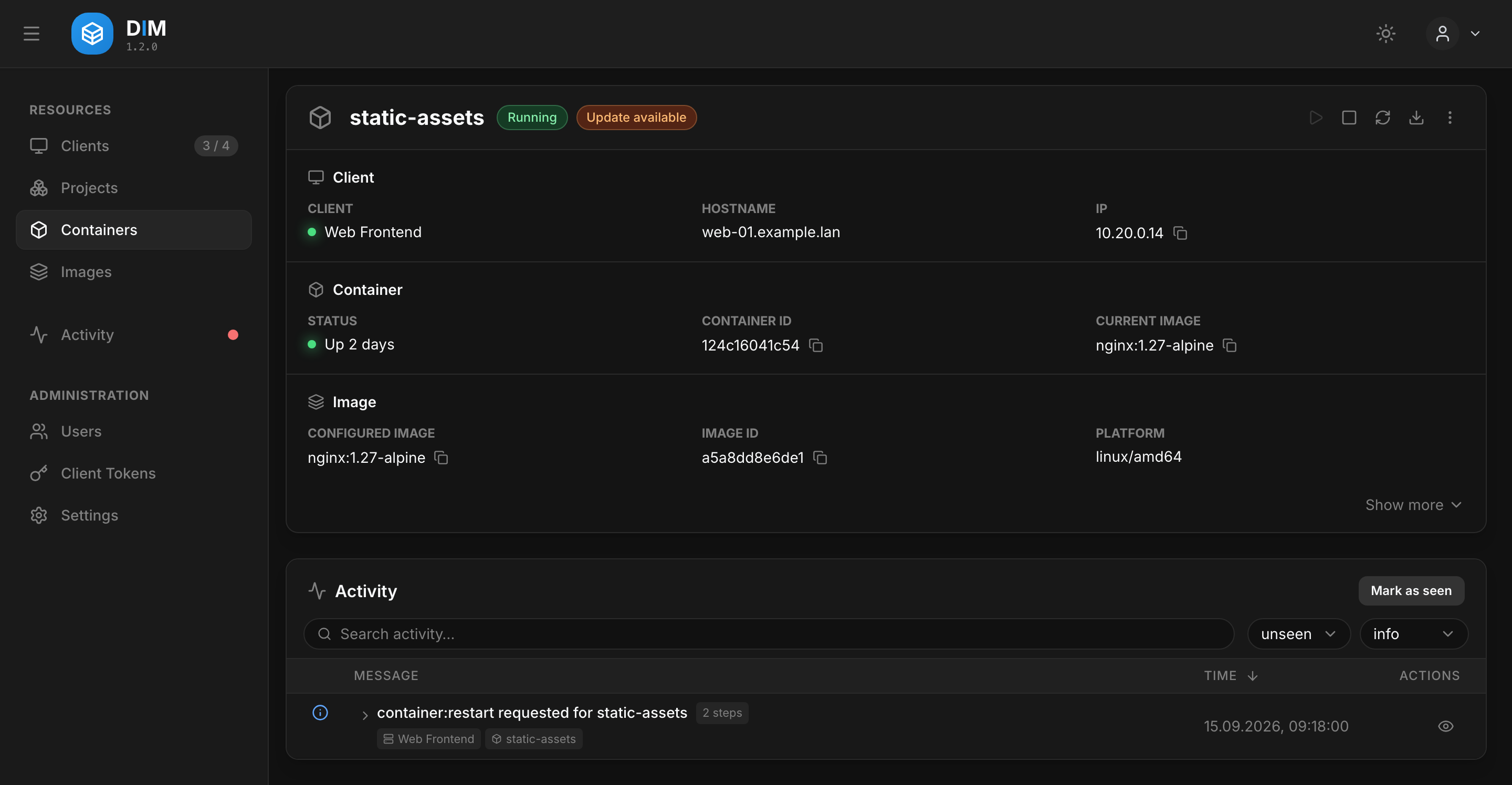
What happened — stop, recreate, start, healthy or not — appears in the activity list as one group per click; see Activity.
When the agent's own container is among them, the agent replaces itself last, once every
other action on that host is done. Until it is back, the host refuses new actions with
Agent is replacing itself — retry once it shows as connected again. How long it waits for the
others is selfUpdateWaitSeconds in the agent's config.
If the new agent does not come up healthy, it is rolled back to its previous release, and the
activity list says so.
Auto-update
Auto-update runs in the agents, on each host's own clock. The server only tells every agent what to update when; the agent then checks the registry, pulls and recreates by itself — and keeps doing so while the server is down. The report arrives once the server is back.
Which containers take part
A container takes part if either
- it carries the auto-update label —
dim.auto-update=trueby default, or - it belongs to a project with auto-update switched on.
The same label key set to false (dim.auto-update=false) opts a container out of both.
services:
    app:
        image: ghcr.io/example/app:2
        labels:
            - dim.auto-update=true
            - dim.auto-update-delay=3      # optional: only images at least 3 days old
The delay label postpones an update until the new image is a given number of days old — a simple guard against a broken release. Both label names can be changed under Settings → Container Auto-Update. The Auto-Update column in the container lists shows what enrols each container: Label, or the project's name.
Schedules
Schedules are cron expressions (0 3 * * * = daily at 03:00) and are inherited from the top
down. Each agent reads an expression in its own time zone, not in the browser's: in a
container that is UTC unless the agent is given TZ (see
Time zones). The client page shows the zone every agent
reported, and when its next run is due.
The Last Auto-Update column of the client list shows when each host last ran its auto-update — any of its schedules, whether the run changed anything or not. A run with nothing to do leaves no entry in the activity; the column still moves.
| Level | Set in | Applies to |
|---|---|---|
| Default | Settings → Container Auto-Update | every host and project without a schedule of its own |
| Host | client editor → own schedule | the host's labelled containers that are in no project |
| Project | project editor | the project's containers, on every host |
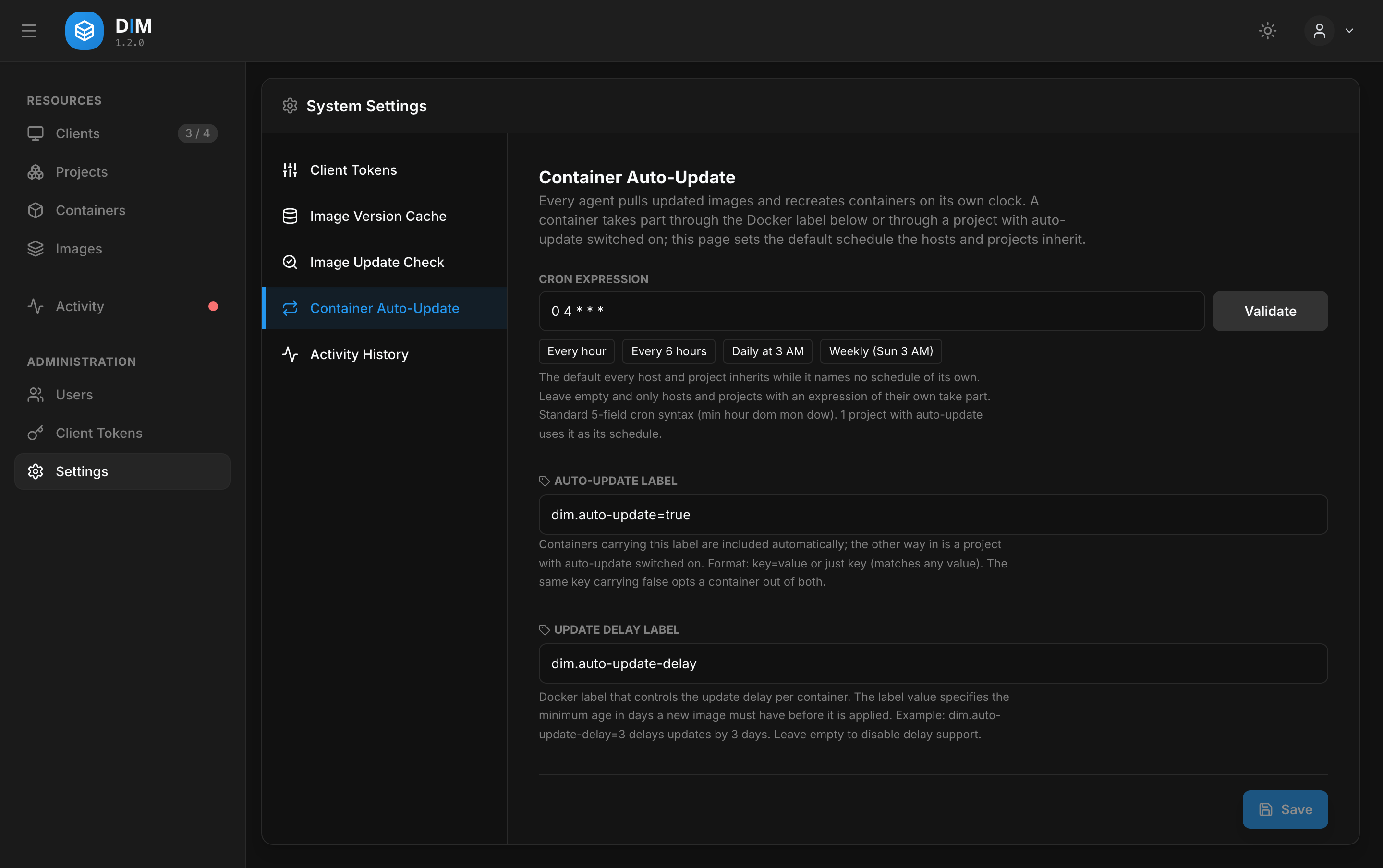
With an empty default only hosts and projects that name a schedule of their own are updated. A container in a project follows the project's schedule even if its label enrolled it, so a project's containers are always updated together.
The Next Check column of the container lists shows how long it is until the schedule a container follows next runs on its host — the project's for a container in a project, the host's for every other one, each as inherited from the table above. The tooltip gives the date and the expression. A row for a container on several hosts shows the earliest of them; due means the time has passed and the host has not reported the run yet, typically because it is offline. The column stays empty for a container that takes no part, and for a host whose agent predates the report until it is updated.
A run first pulls every image that is due, and only then recreates the containers — a project whose third image fails to pull is not left half on the new release. A host that was off at the scheduled time makes the run up once, a few minutes after it starts. A run that changed nothing reports nothing.
Projects
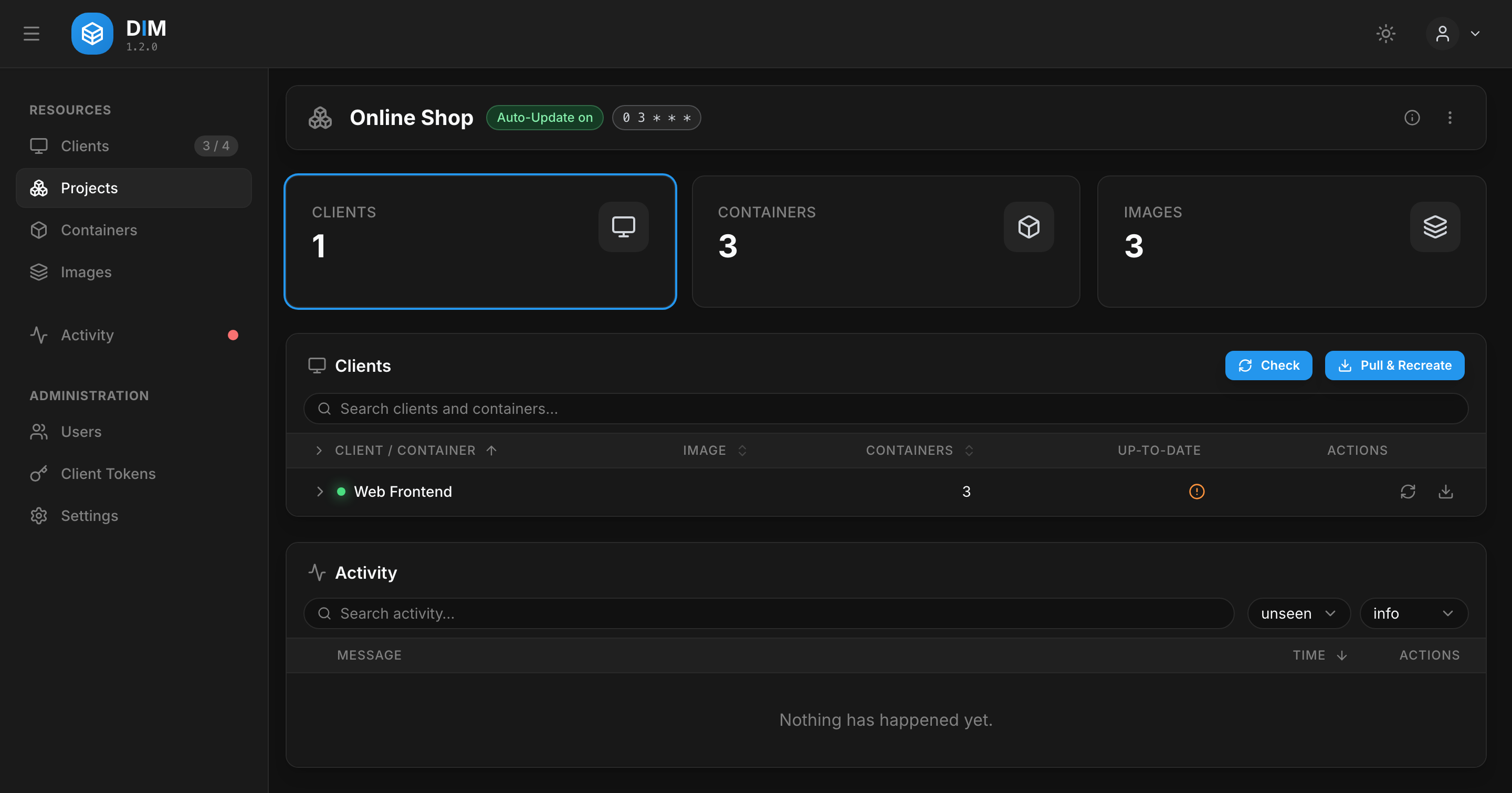
A project groups containers across hosts — a web shop's frontend, API and cache, wherever they run — so they can be checked, pulled and auto-updated together.
Membership is defined by a query, not a list: container name matches shop-*,
Compose project is shop, image is postgres, host is not test-*. Criteria can be combined with AND/OR and are
evaluated top to bottom. The editor shows the matching containers live while you type, and a
container that starts later joins the project by itself.
- A container belongs to one project at most. A query that would take containers from another project cannot be saved.
- If a container started later matches two projects, it is a conflict: it is marked in the lists and updated by neither project — with the auto-update label it falls back to the host's schedule.
- A project's schedule left empty means use the default; auto-update itself is switched on and off with its own toggle.
- Deleting a project removes the DIM entry only. No container is touched.