Quick Start
From nothing to a first managed host in four steps: start the server, sign in, start an agent on a Docker host, register it. It takes about ten minutes and needs nothing but Docker.
You need:
- Docker with the Compose plugin on the machine that runs the server and on every host you
want to manage (
linux/amd64orlinux/arm64, a Raspberry Pi works). - A network path from each agent to the server on port 3000. If only the server can reach the host, not the other way round, see Outbound agents.
1. Start the server
Create a directory with two files:
The empty server-config.yaml is on purpose: the server fills it on its first start and
stores its session secret there. Create it before the first up. Without the file Docker
mounts an empty directory in its place, and the server cannot save its secret — every
restart would then sign everybody out.
compose.yaml:
services:
    dim-server:
        image: ghcr.io/stefgo/dim-server:latest
        container_name: dim-server
        ports:
            - "3000:3000"
        volumes:
            - server-data:/app/server/backend/data       # SQLite database
            - ./server-config.yaml:/app/server/config.yaml
        environment:
            - NODE_ENV=production
        restart: unless-stopped

volumes:
    server-data:
Put it behind a reverse proxy with TLS before it leaves your LAN, and list the proxy in
security.trusted_proxies— otherwise every request appears to come from the proxy. See Security.
2. Sign in
Open http://<server>:3000 and sign in with admin / admin.
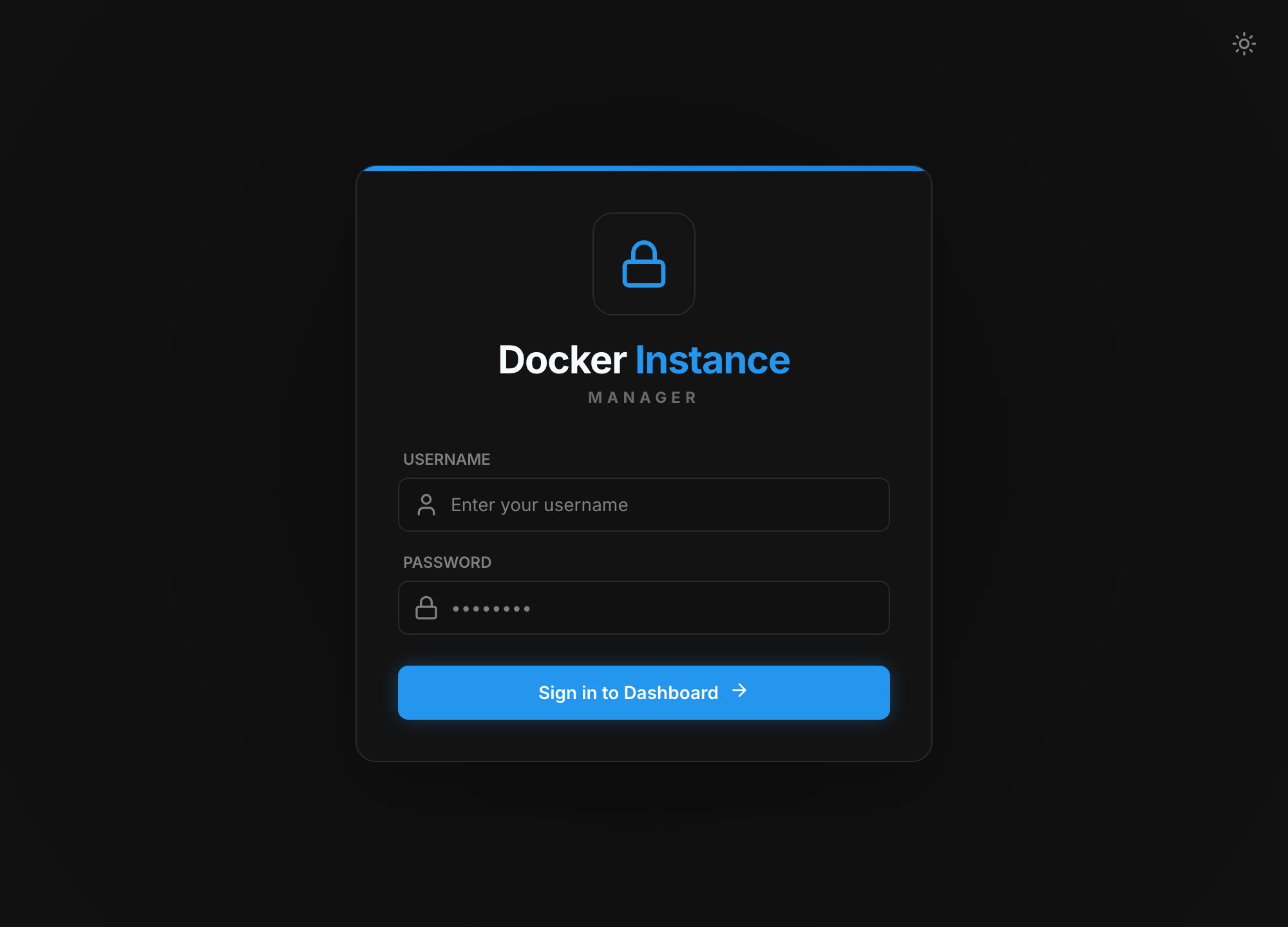
Change that password now: Users → the admin row → edit → new password. The server
creates this account only while the user table is empty, and logs a warning when it does.
3. Start an agent on a Docker host
On the host to be managed, again a directory with two files:
The file has to belong to root, hence sudo: the agent below runs without capabilities and
can write only files root owns (Security).
compose.yaml:
services:
    dim-client:
        image: ghcr.io/stefgo/dim-client:latest
        container_name: dim-client
        ports:
            - "3001:3001"
        cap_drop:
            - ALL
        security_opt:
            - no-new-privileges:true
        read_only: true
        tmpfs:
            - /tmp
        volumes:
            - /var/run/docker.sock:/var/run/docker.sock
            - ./client-config.yaml:/app/client/config.yaml
            - client-data:/app/client/data               # identity, policy, queue
        environment:
            - NODE_ENV=production
        restart: unless-stopped

volumes:
    client-data:
The log shows a box with the setup PIN. You need it in a moment:
──────────────────────────────────────────────
  Setup PIN:  K7QM-3XRD
  Web UI:     http://<this-host>:3001/register
  …
──────────────────────────────────────────────
client-datahas to be a named volume. It holds the identity the server issues at registration. Lose it and the agent has to be registered again — and a bind mount next toclient-config.yamlwould be lost on every self-update.
4. Register the agent
In the dashboard, Clients → Add Client → The agent connects to this server → Next.
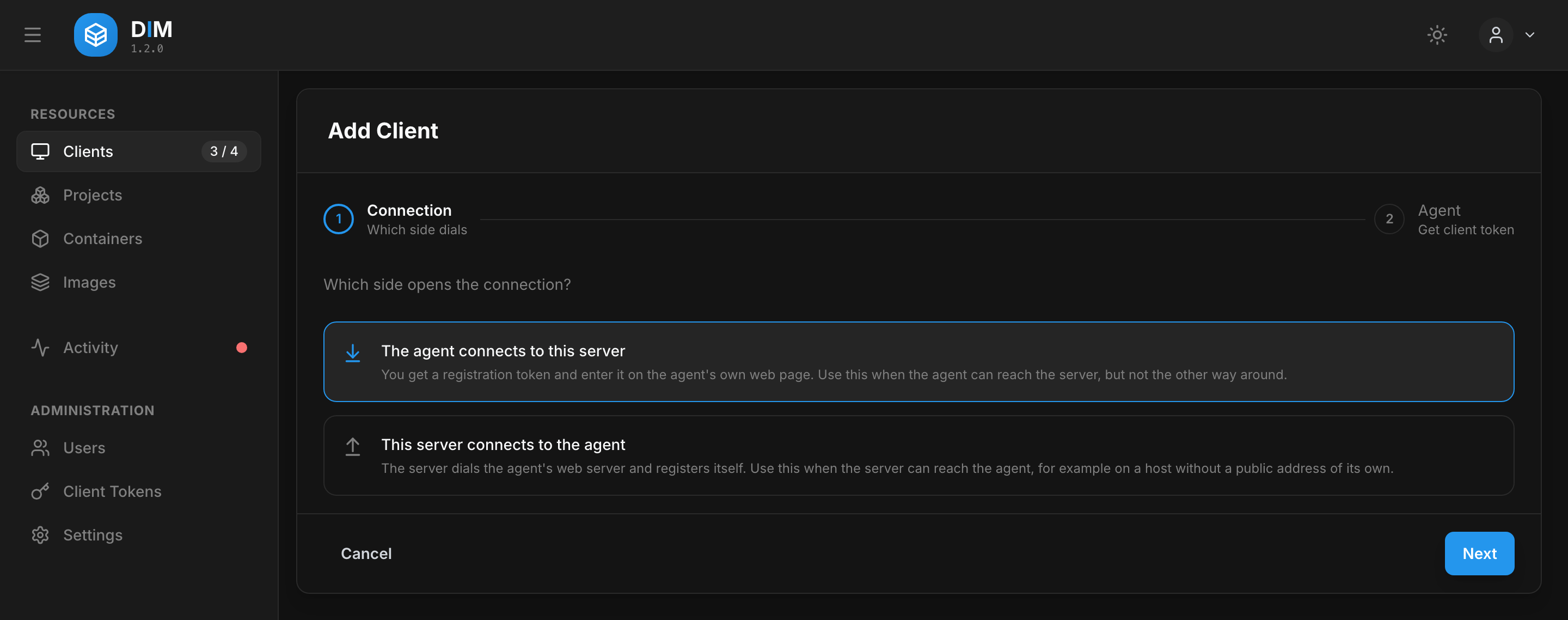
Step 2 takes the display name the client is listed under and, optionally, an allowed IP or network; leave that empty to use the address the agent registers from. Add Client & Generate Token adds the client — it waits for its agent — and shows the registration token once: copy it. It is valid for 30 minutes; the client's page issues a new one if it runs out.
Then open the agent's page at http://<host>:3001/register and enter:
| Field | Value |
|---|---|
| Server URL | http://<server>:3000 (or the URL of your reverse proxy) |
| Registration token | the token from the wizard |
| Setup PIN | the PIN from docker logs dim-client |
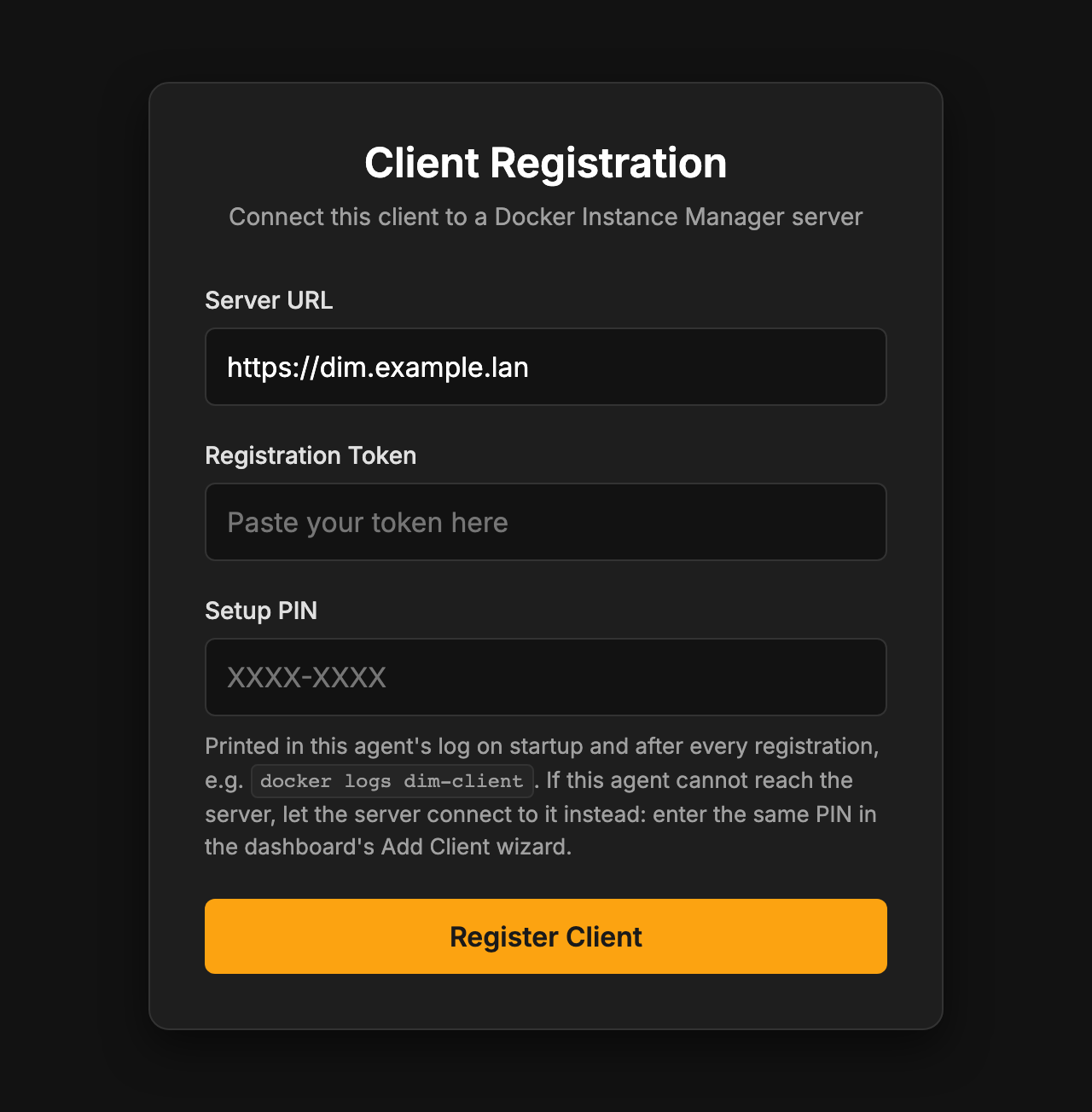
Register — the agent stores its identity, connects, and the register page closes itself. Back in the dashboard the host is listed under Clients with a green dot, and its containers, images, volumes and networks show up a second later.
What next
- More hosts: repeat steps 3 and 4 on each of them.
- Keep images current: label containers with
dim.auto-update=trueand set a schedule — see Updates & Auto-Update. - Settings you may want now: OIDC sign-in, a regular registry check, retention — Configuration.
- Before going to production: Security and Operations (backups, upgrades, health checks).